You don't want to quit Instagram. Your friends are there, your messages are there, maybe your work is there. You just want it to stop taking over your evenings.
Deleting the app feels drastic, and for a lot of people it doesn't last: the App Store is one tap away, and the first bored moment brings it back. The good news is there's a lot of room between "scroll whenever" and "delete everything." This guide goes from the lightest option to the strongest, so you can pick the break that actually fits your life.
First, decide what kind of break you want
| Kind of break | Good for | What to use |
|---|---|---|
| A nudge | Noticing when a quick check turns into 40 minutes | The apps' own reminders |
| Less pull | Stopping the app from calling you back | Notifications and your Home Screen |
| Hours off | Evenings, work, study, or sleep | A timed block |
| A full pause | A week or more away | Offloading or deactivating |
Most people get the best results by combining two: less pull all the time, plus hours off at the moments they scroll the most.
Step 1: Use the apps' own time tools
Both apps have built-in tools. They're a reasonable place to start, as long as you know their limits.
Go to your profile, tap the menu (☰), then Time management. On some versions it's under Your activity → Time spent.
- Daily limit: get a reminder once you've spent a set amount of time on Instagram that day.
One more setting worth changing: tap the Instagram logo at the top of your feed and switch to Following. You'll see posts from accounts you follow instead of an endless stream of recommendations.
TikTok
Go to your profile, tap the menu (☰), then Settings and privacy → Screen time.
- Daily screen time: set a daily limit. When you reach it, you have to enter a passcode to keep watching.
The honest part: these are reminders, built by companies whose business depends on your attention. You can tap past Instagram's reminders, and you set TikTok's passcode yourself, so you already know it. They're useful for awareness, but rarely enough on their own.
Step 2: Stop the app from calling you back
A lot of scrolling doesn't start with a decision. It starts with a notification, or with your thumb landing on a familiar icon.
- Turn off notifications. Go to Settings → Notifications, choose Instagram or TikTok, and turn off Allow Notifications. If you still want messages, keep notifications on and switch off everything except messages inside the app's own notification settings.
- Take the app off your Home Screen. Touch and hold the icon, tap Remove App, then choose Remove from Home Screen. The app stays in your App Library and nothing is deleted. You just have to go looking for it.
- Log out after each session. Having to log back in is a small speed bump, and small speed bumps are often enough to break an automatic habit.
Step 3: Block it during the hours you scroll most
This is where a break starts to hold. Instead of a daily budget you can spend by 9am, pick the hours that matter to you, like evenings, study time, or the first hour after you wake up, and make the apps unavailable during them.
Option A: Screen Time (built into iPhone)
- App Limits: go to Settings → Screen Time → App Limits → Add Limit, choose Instagram and TikTok (or the whole Social category), and set a time. This is a daily budget, and when you reach it, it only takes a tap to ignore it for the rest of the day.
- Downtime: go to Settings → Screen Time → Downtime and set a schedule. During Downtime, only the apps you allow and phone calls are available.
Option B: A timed block with Focus
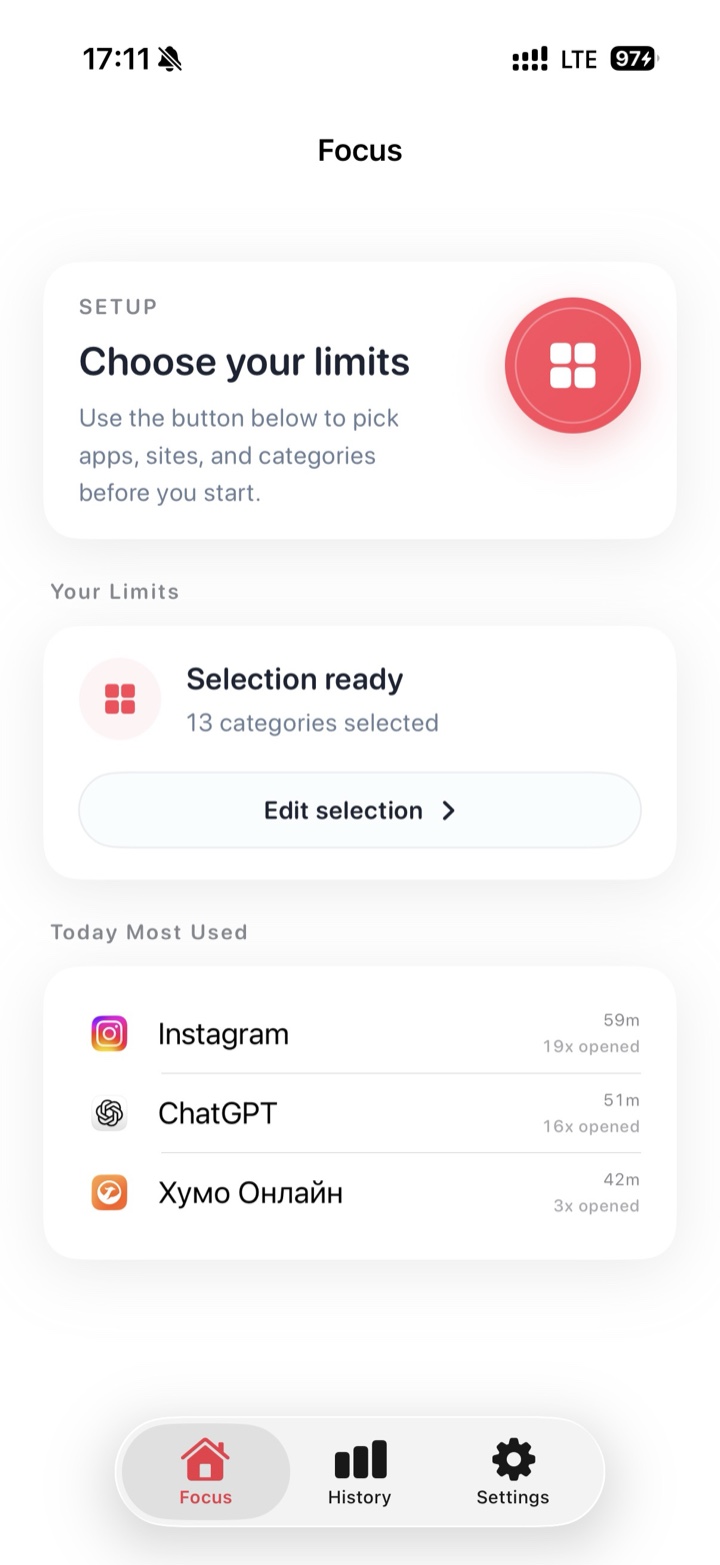
Focus is an app blocker built for exactly this kind of break:
- Choose what to block: Instagram and TikTok, their websites, or whole categories like social media.
- Set how long the block should last.
- Start the block.
Everything you didn't select keeps working, so Messages, WhatsApp, Maps, and your camera are still there. If you reach for a blocked app out of habit, Focus shows a pause screen that helps you get back to what you meant to do. It uses Apple's Screen Time protections and doesn't need an account.
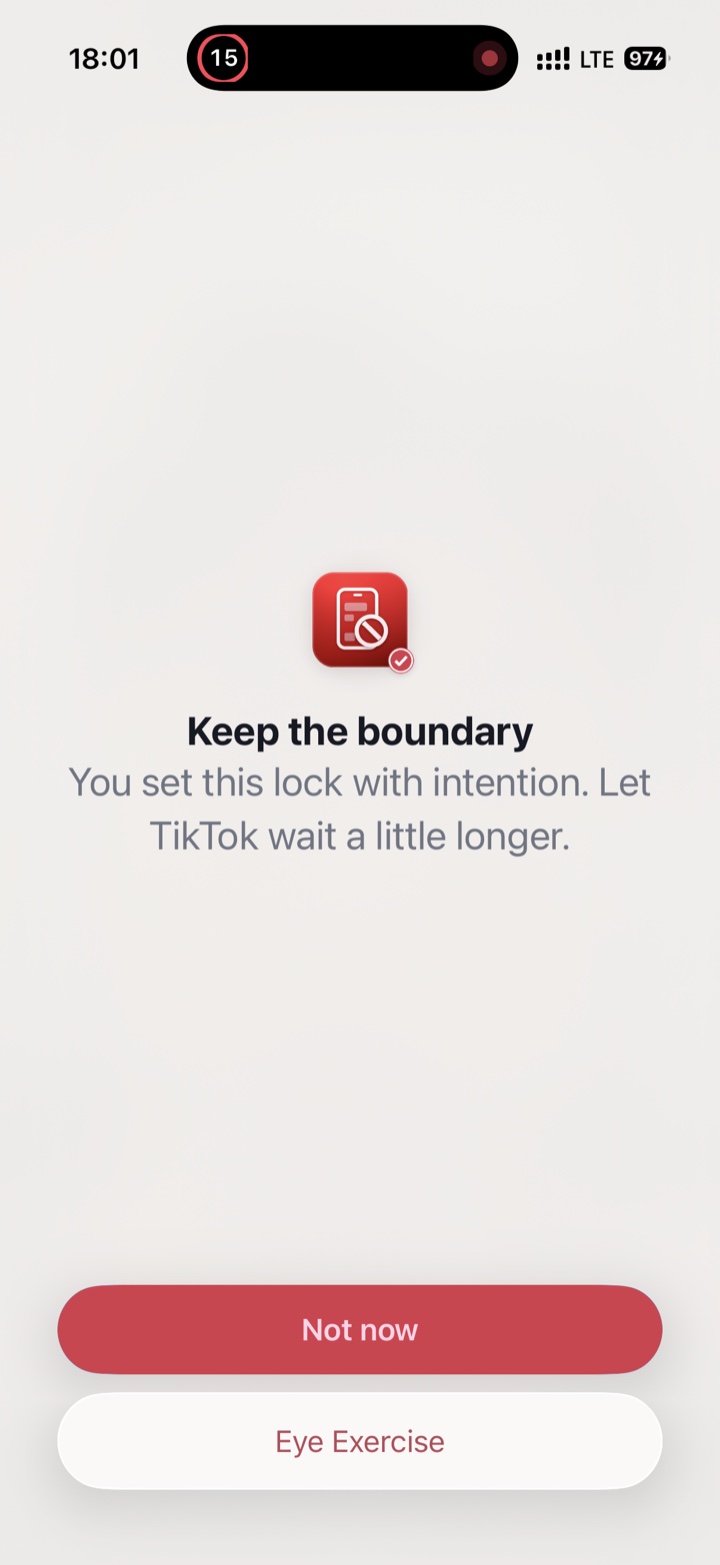
Tip: block the websites too. Otherwise it's easy to end up on instagram.com or tiktok.com in Safari the moment the app is out of reach.
Step 4: Take a full pause
If you want a week or more away, these options go further, without losing anything.
Offload the app
Go to Settings → General → iPhone Storage, choose Instagram or TikTok, and tap Offload App. The app is removed from your iPhone, but its documents and data are kept. The icon stays with a small cloud next to it, and tapping it reinstalls the app. You can also remove the icon from your Home Screen so it's out of sight.
It's a gentle kind of friction: nothing is lost, but opening the app is no longer instant.
Temporarily deactivate your account
Instagram: go to your profile, tap the menu (☰), then Accounts Center → Personal details → Account ownership and control → Deactivation or deletion. Choose your account, select Deactivate account, and follow the prompts. Your profile, photos, comments, and likes are hidden until you log back in. Instagram only lets you deactivate once a week.
TikTok: go to your profile, tap the menu (☰), then Settings and privacy → Account → Deactivate or delete account, and choose Deactivate. To come back, just log in again.
In both apps, make sure you choose Deactivate, not Delete. Deleting is permanent.
Keep what you actually need
- Messages: before a longer break, move important conversations to Messages or WhatsApp, and tell close friends where to reach you.
- Work: if you run an account for work, post from a computer at set times instead of keeping the app on your phone.
- Photos and memories: blocking, offloading, and deactivating all keep your posts and data. Only deleting your account removes them.
What the first few days feel like
Expect your thumb to reach for the app out of habit, especially at your usual times: waking up, waiting in line, getting into bed. That's normal. The habit is automatic, which is exactly why friction works better than willpower.
Each time it happens, notice the moment and do the thing you planned instead. After a week, ask yourself what you actually missed. That answer tells you how long your next break should be, and which parts of the app are worth keeping.