You set the limit. You meant it at the time.
Then it appeared mid-scroll, you tapped something without quite deciding to, and the evening went the way it always goes.
It's tempting to read that as a willpower problem. Usually it isn't. Screen Time arrives configured so that a limit is a reminder with a dismiss button, and a reminder is no match for a habit you've practised ten thousand times. Most of what makes limits hold is already on your iPhone. It's just switched off by default, and buried a few taps deeper than it should be.
Why limits don't hold
Three things go wrong. They're worth separating, because each one has a different fix.
The limit has a dismiss button. When you reach an App Limit, your iPhone offers you a way past it. Taking it costs one tap and barely registers as a decision.
The budget is daily, not scheduled. An hour of social media is an hour you can spend before lunch. When 10pm comes around — the time you actually wanted protected — the budget is long gone and the limit has already been waved away.
You hold the passcode. A lock you can open is a lock that opens for whoever asks. At 11pm that's you, and you are not in a negotiating mood.
Your options at a glance
| Tool | What it does | Where it breaks |
|---|---|---|
| App Limits | A daily budget for an app or category | One tap to ignore, until you change a setting |
| Downtime | Blocks apps during hours you choose | You can still switch it off |
| Web content restrictions | Blocks sites across every browser | Fiddly to set up and maintain |
| A timed block | Blocks everything you picked until time is up | Needs a separate app |
Most people do best with two: a schedule covering the hours they actually lose, and something firmer than a daily budget for the apps that pull hardest.
Step 1: Set a Screen Time passcode
Everything else depends on this step, and it's the one most people skip.
Go to Settings → Screen Time → Lock Screen Time Settings and set a four-digit code.
Until you do, the toggle that makes App Limits genuinely block — Block at End of Limit — doesn't appear at all. This is the most common reason people decide Screen Time is broken. They set limits, watched themselves stroll straight through them, and never saw the setting that would have stopped them, because it was hidden behind a passcode they hadn't set.
With the passcode in place, go to Settings → Screen Time → App Limits, tap one of your limits, and turn on Block at End of Limit. Reaching the limit now locks the app instead of suggesting you stop.
Two things worth doing while you're there:
- Don't reuse your unlock code. If the Screen Time passcode is the one your thumb enters fifty times a day, it isn't friction. It's muscle memory.
- Make it hard to reach in the moment. Some people write it down and leave it in another room. That sounds excessive right up until the first evening it works.
Step 2: Close the doors you'll walk through anyway
A limit that locks the app still leaves a few ways around it, and habit finds them without consulting you.
The extension button. Reaching a limit may still offer you more time. Find out what your iPhone puts in front of you at that moment, because that is the button your thumb will go for.
Deleting and reinstalling. Removing an app and downloading it again resets its limit. Shut this one at Settings → Screen Time → Content & Privacy Restrictions → iTunes & App Store Purchases, then set Deleting Apps to Don't Allow. You can leave installing allowed if you still want to add new apps.
The website. Blocking the Instagram app does nothing about instagram.com in Safari, and nothing about the browser tucked inside another app. To cover the web, go to Settings → Screen Time → Content & Privacy Restrictions → Content Restrictions → Web Content, choose the middle of the three options, and add the sites you want gone under Never Allow. It's clumsy, but it applies across every browser rather than one at a time.
If the apps you're trying to get some distance from are Instagram or TikTok in particular, our guide to taking a break from them covers the app-side options in more depth, from gentle limits through to a full pause.
Step 3: Protect hours, not budgets
A daily allowance asks you to ration something you're not counting. A schedule just decides in advance.
Go to Settings → Screen Time → Downtime and set the hours you actually lose. For most people that's the last two hours before bed and the first thirty minutes after waking. During Downtime, only the apps you've put under Always Allowed stay available, along with phone calls.
"Nothing social after 9:30pm" is a rule you can keep. "An hour a day" is an accounting exercise you'll lose track of by Tuesday.
Where it falls short: Downtime repeats on a schedule, so it does nothing for the unplanned afternoon when you need to finish something. And you can still switch it off, because the passcode is yours.
Step 4: When you want the decision made in advance
The deeper problem with everything above is that it asks the person at 11pm to honour a decision made by the person at 3pm. Those two people want different things, and the one holding the phone always wins.
A timed block turns that around. You decide once, at the start, and the decision stays made until the time is up.
Focus works this way:
- Choose what to block — individual apps, their websites, or whole categories.
- Set how long the block should run.
- Start it.
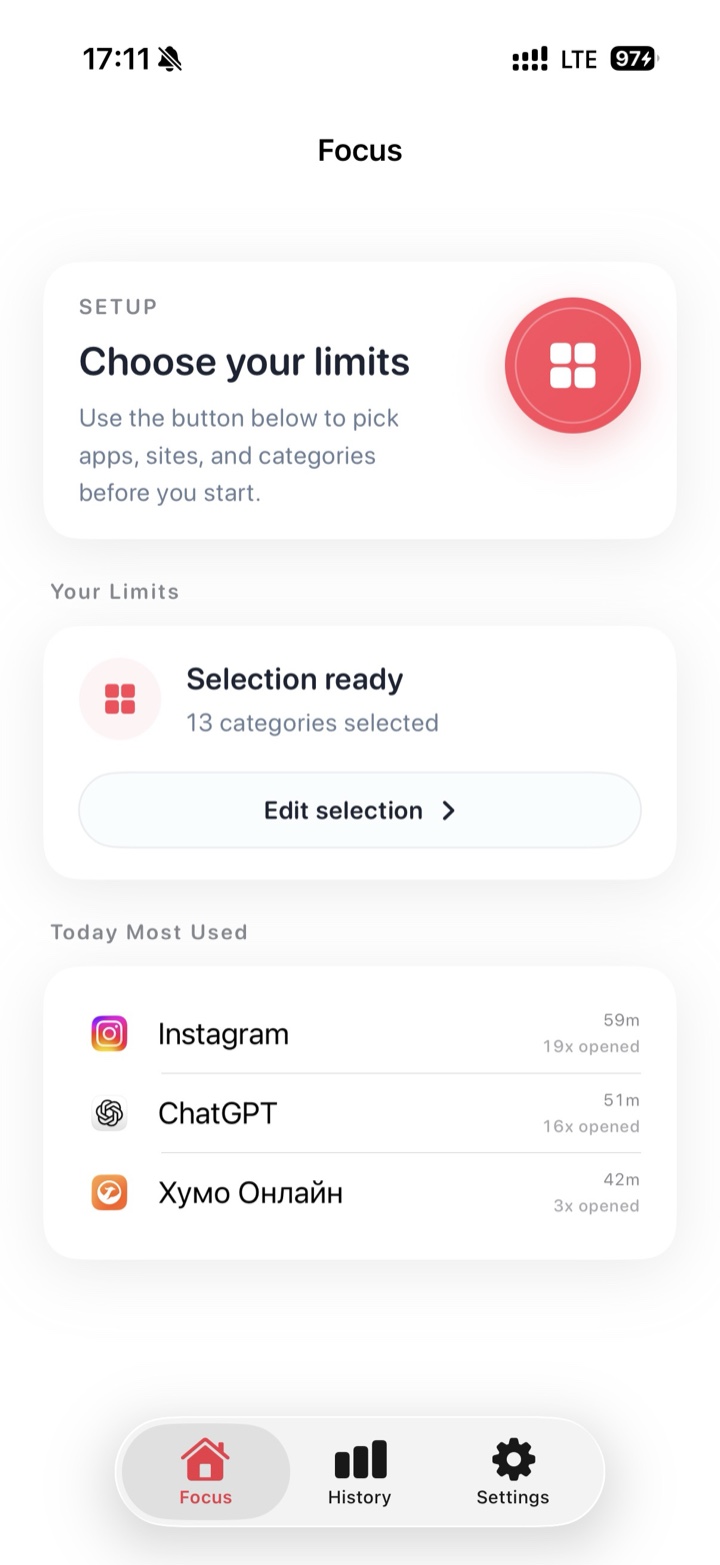
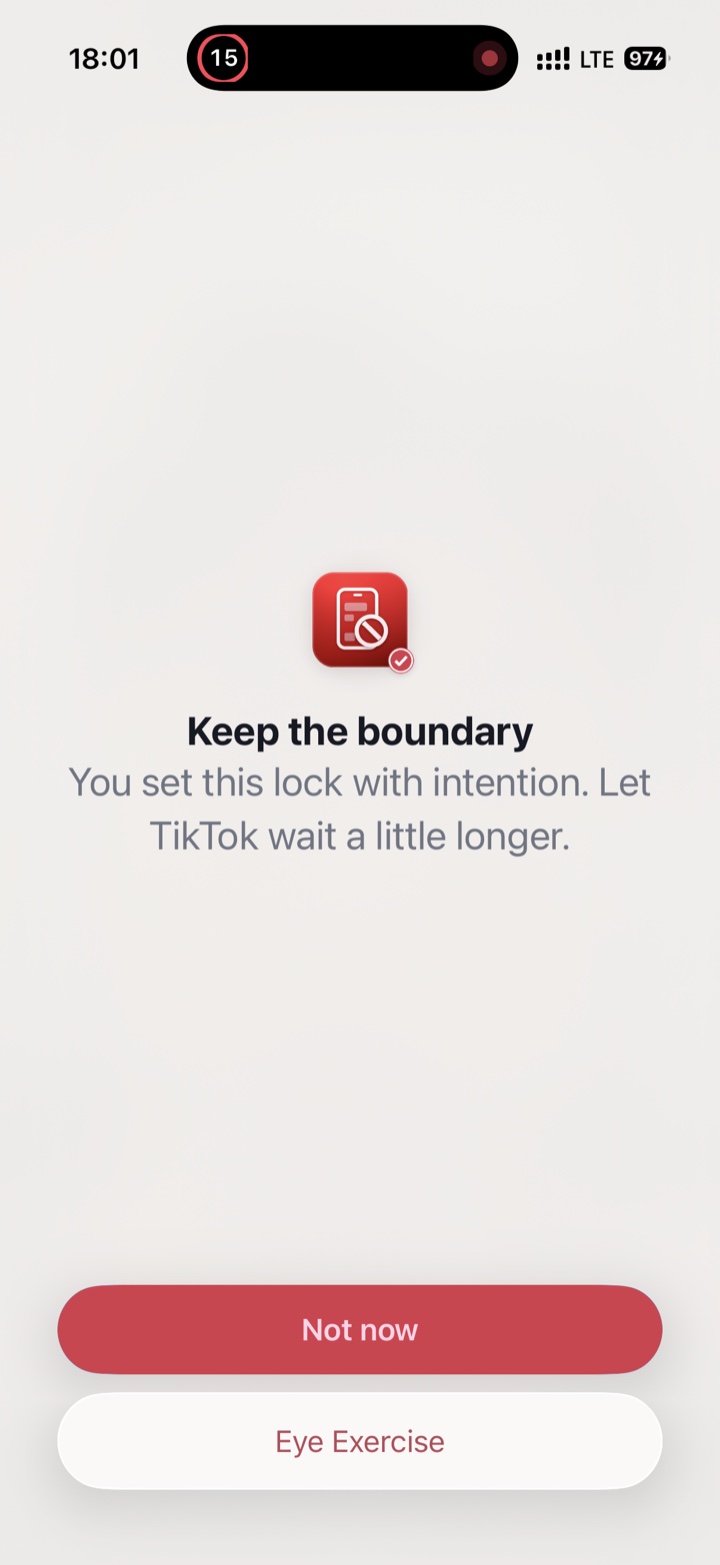
Everything you didn't pick keeps working, so Messages, Maps, and your camera are still there. Underneath, it's the same Apple Screen Time protections doing the enforcing — arranged so the choice happens once, in advance, instead of every time you pick up your phone.
Tip: block the websites at the same time as the apps. Otherwise the first blocked tap just becomes a trip to Safari.
A setup that survives the next update
Worth checking once, then re-checking after each iOS update:
- Screen Time passcode set, and different from your unlock code
- Block at End of Limit turned on for every limit you've made
- Deleting Apps set to Don't Allow
- Websites covered under Never Allow, not just the apps
- Downtime scheduled over the hours you actually lose
That last point matters more than it should. iOS updates have a long history of quietly switching Screen Time off or dropping limits along the way, and the failure is silent — nothing tells you the boundary is gone. You find out a week later, from your usage numbers.
None of this is about locking yourself out of your own phone. It's about making the boundary you already decided on slightly harder to undo than a single tap — so the version of you at 11pm inherits a decision, rather than having to make one.