X is built for checking. Something is always happening, and the feed refreshes every time you look. A quick look at the news turns into an hour of replies to replies.
X has no time limit of its own, so blocking it comes down to your iPhone: Apple's Screen Time, or a timed block with an app like Focus. Either way, block the website too, and use both addresses, x.com and twitter.com. Links to X still circulate under both.
Your options at a glance
| Option | What it does | Where it breaks |
|---|---|---|
| X's own settings | Calmer feed: Following tab, no autoplay, muted topics | X has no time limit, so nothing ever stops you |
| Screen Time App Limit | Locks the X app after a daily budget | Only holds with a passcode and Block at End of Limit turned on |
| Downtime | Blocks X during hours you choose | You can switch it off |
| Blocking x.com and twitter.com | Stops X in Safari and other browsers | Needs both addresses, set up separately from the app |
| A timed block | Blocks the app and website until time is up | Needs a separate app |
Step 1: Calm the X feed
X doesn't offer a daily limit or break reminder. These settings don't limit your time, but they take some of the pull out of the feed.
- Switch to Following. At the top of the home timeline, tap Following instead of For You. You'll see posts from accounts you chose, in order, instead of whatever X thinks will keep you there. X doesn't always remember the choice, so check which tab you're on.
- Turn off video autoplay. Go to the menu, then Settings and privacy → Accessibility, display, and languages → Data usage → Video autoplay, and choose Never.
- Mute the topics that pull you in. Go to Settings and privacy → Privacy and safety → Mute and block → Muted words, and add the words or hashtags you end up arguing about.
- Turn off notifications. On your iPhone, go to Settings → Notifications → X and turn off Allow Notifications. Trending alerts and "see what's happening" pushes are built to bring you back.
Step 2: Block the X app with Screen Time
Screen Time can lock the X app outright, as long as you set it up in this order.
- Set a Screen Time passcode. Go to Settings → Screen Time → Lock Screen Time Settings and choose a code that isn't the one you unlock your phone with.
- Add a limit. Go to Settings → Screen Time → App Limits → Add Limit, use the search field to find X, select it, and tap Next. One minute is the shortest limit.
- Turn on Block at End of Limit. Open the limit and switch it on. The option only appears once a passcode is set.
X often fills specific gaps: first thing in the morning, the commute, late at night. Settings → Screen Time → Downtime blocks it during those hours instead of on a daily budget.
For the settings that keep limits from being bypassed, see how to make Screen Time limits actually hold.
Step 3: Close the x.com and twitter.com loophole
With the app blocked, X still works in full in Safari. And because posts are shared everywhere, from group chats to news articles, a link to X is never far away.
Block both addresses:
- In your App Limit. While choosing what the limit covers, scroll to Websites, tap Add Website, and add
x.com. Then addtwitter.comthe same way. - Everywhere, all the time. Go to Settings → Screen Time → Content & Privacy Restrictions → Content Restrictions → Web Content, choose the middle option, and add both
x.comandtwitter.comunder Never Allow. This applies across every browser.
Deleting and reinstalling X resets its App Limit. Shut that gap by setting Deleting Apps to Don't Allow under Settings → Screen Time → Content & Privacy Restrictions → iTunes & App Store Purchases.
Where the free options stop working
- X gives you nothing to hit. No limit and no reminder, so every stopping point is one you build yourself.
- Links bring you back. Someone sends a post in a group chat, you tap it, and you're back in the timeline. Blocking only the app does nothing about that.
- You hold the passcode. When something big is breaking, the person deciding whether to switch Screen Time off is the one who wants to keep refreshing.
Block X with Focus
Focus is an iPhone app blocker that turns this into a decision you make once, before the news cycle gets a say:
- Choose X, and add x.com and twitter.com so Safari and shared links are covered.
- Set how long the block should last.
- Start the block.
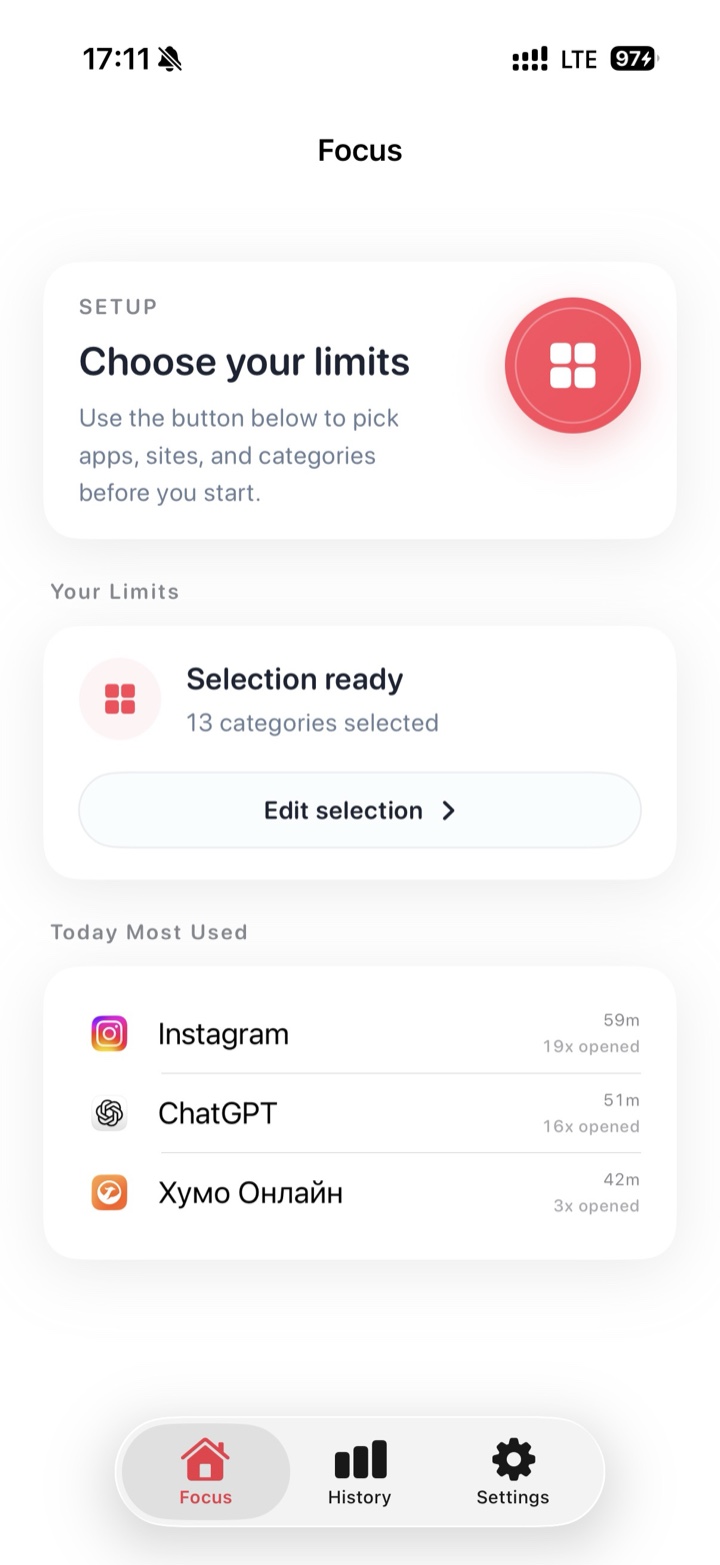
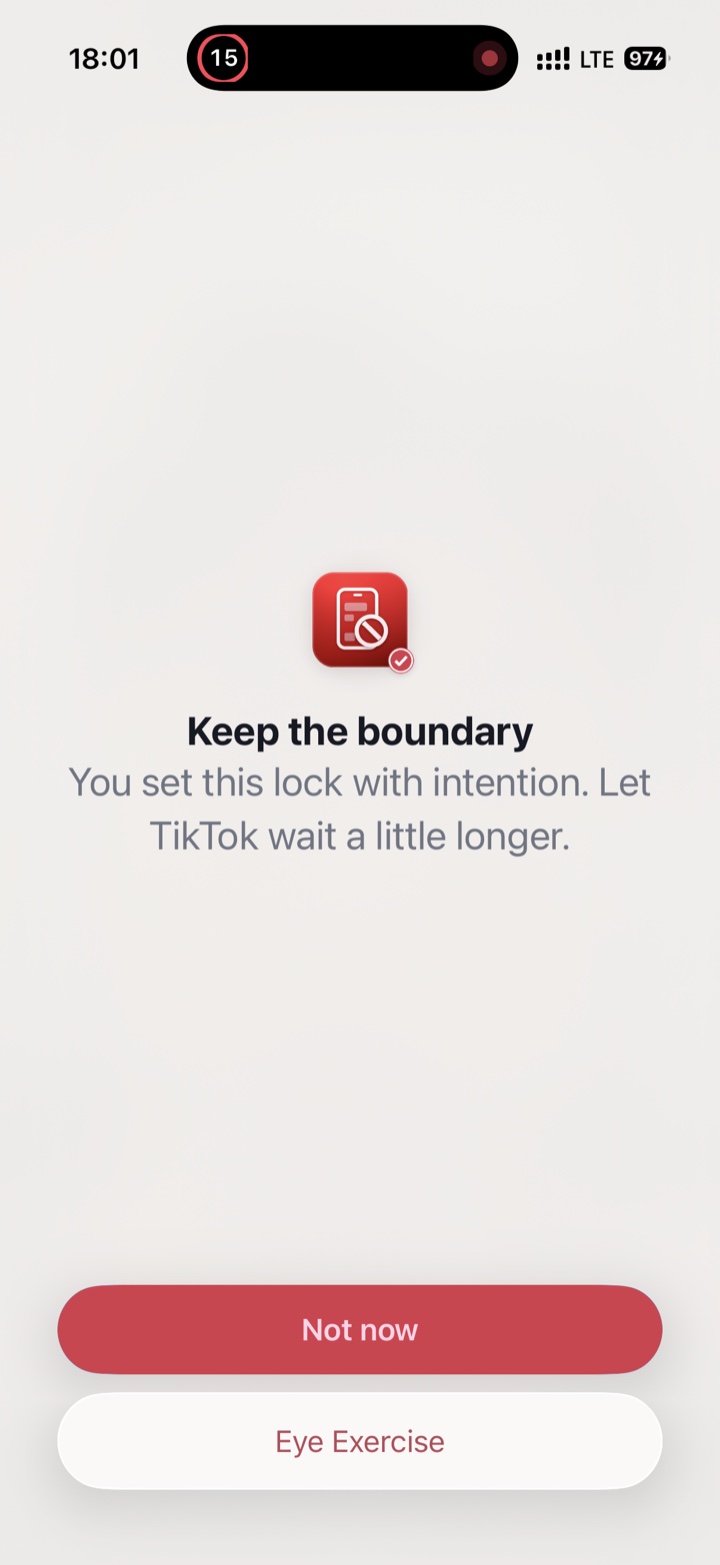
Everything you didn't pick keeps working. If you open X out of habit, or tap a link to a post, Focus shows a pause screen instead of the timeline. It uses Apple's Screen Time protections and doesn't need an account.
Tip: if you use X for news, pick one or two other sources you trust and check them at set times while X is blocked. It's the fear of missing something that pulls you back, not the feed itself.
FAQ
Do I need to block both x.com and twitter.com?
Yes, to be safe. Twitter's old address still appears in links shared over the years, and blocking one address doesn't always cover the other. Adding both takes seconds.
Will people know I've blocked X?
No. Blocking only affects your iPhone. Nothing is posted, your followers aren't told, and your account looks the same. Replies and messages are waiting when the block ends.
Can I still post to X while it's blocked?
Not from your iPhone, because the app and website won't open. If you need to post for work, do it from a computer at set times, or schedule posts in advance so you don't need to open the timeline to publish.