Instagram is where your friends and messages are, which is exactly what makes it hard to put down. One reply turns into Reels, and Reels turn into an hour.
You can block Instagram on iPhone three ways: Instagram's own time settings, Apple's Screen Time, or a timed block with an app like Focus. Two things trip people up: instagram.com keeps working in Safari after the app is blocked, and blocking the app blocks your DMs with it. This guide covers both.
Your options at a glance
| Option | What it does | Where it breaks |
|---|---|---|
| Instagram's daily limit | Shows a reminder after a set time each day | One tap on Dismiss and you're back in the feed |
| Quiet mode | Pauses notifications and auto-replies to DMs | Doesn't stop you opening the app |
| Screen Time App Limit | Locks Instagram after a daily budget | Only holds with a passcode and Block at End of Limit turned on |
| Blocking instagram.com | Stops Instagram in Safari and other browsers | Set up separately from the app |
| A timed block | Blocks the app and website until time is up | Needs a separate app |
Step 1: Use Instagram's own tools
Instagram has more built-in controls than most apps. None of them block anything, but two are worth turning on.
Daily limit and break reminders. Go to your profile, tap the menu (☰), then Your activity → Time spent. Tap Set daily time limit and choose a time. In the same place you can turn on reminders to take a break after 10, 20, or 30 minutes of continuous scrolling.
Quiet mode. Go to the menu (☰), then Settings and privacy → Notifications → Quiet mode. Schedule the hours you want to be left alone. During them, Instagram holds back notifications and sends an automatic reply to anyone who messages you, so nobody's left wondering why you've gone silent.
One more change: tap the Instagram logo at the top of your feed and choose Following. You'll see posts from people you follow, without the endless recommendations.
The daily limit is the weak link. When you reach it, Instagram shows a reminder with a Dismiss button, and dismissing it takes one tap. Treat it as a clock, not a lock.
Step 2: Block the Instagram app with Screen Time
Screen Time can lock Instagram outright, as long as you set it up in the right order.
- Set a Screen Time passcode first. Go to Settings → Screen Time → Lock Screen Time Settings. Use a code that's different from the one you unlock your phone with.
- Create the limit. Go to Settings → Screen Time → App Limits → Add Limit, open Social, select Instagram, and tap Next. Pick a time, as short as one minute if you want it effectively off.
- Turn on Block at End of Limit. Open the limit and switch it on. Without a passcode this option doesn't appear, and the limit is just another reminder.
If your Instagram time clusters at certain hours, like in bed or first thing in the morning, Settings → Screen Time → Downtime is the better fit. It blocks Instagram on a schedule instead of a daily budget.
For the settings that stop limits being quietly bypassed, see how to make Screen Time limits actually hold.
Step 3: Close the instagram.com loophole
With the app blocked, instagram.com still works in Safari. You can log in and keep scrolling your feed, and none of the app's limits apply there.
Close it one of two ways:
- Put it in the same limit. While choosing what your App Limit covers, scroll to Websites, tap Add Website, and enter
instagram.com. The app and the site then share one budget. - Block it everywhere. Go to Settings → Screen Time → Content & Privacy Restrictions → Content Restrictions → Web Content, choose the middle option, and add
instagram.comunder Never Allow. This covers every browser on your iPhone.
Deleting and reinstalling Instagram resets its App Limit, so close that too: go to Settings → Screen Time → Content & Privacy Restrictions → iTunes & App Store Purchases and set Deleting Apps to Don't Allow.
Where the free options stop working
- Instagram's limit can be dismissed. It's designed by a company that earns more the longer you stay, and it shows.
- A daily budget is easy to spend early. Twenty minutes on the bus in the morning can use up the whole day's allowance before the evening you meant to protect.
- You hold the passcode. Screen Time can be turned off by whoever knows the code, and the person reaching for Instagram at midnight knows it.
Block Instagram with Focus
Focus is an iPhone app blocker that turns this into a decision you make once, at the start, instead of every time you pick up your phone:
- Choose Instagram, and add instagram.com so Safari is covered too.
- Set how long the block should last.
- Start the block.
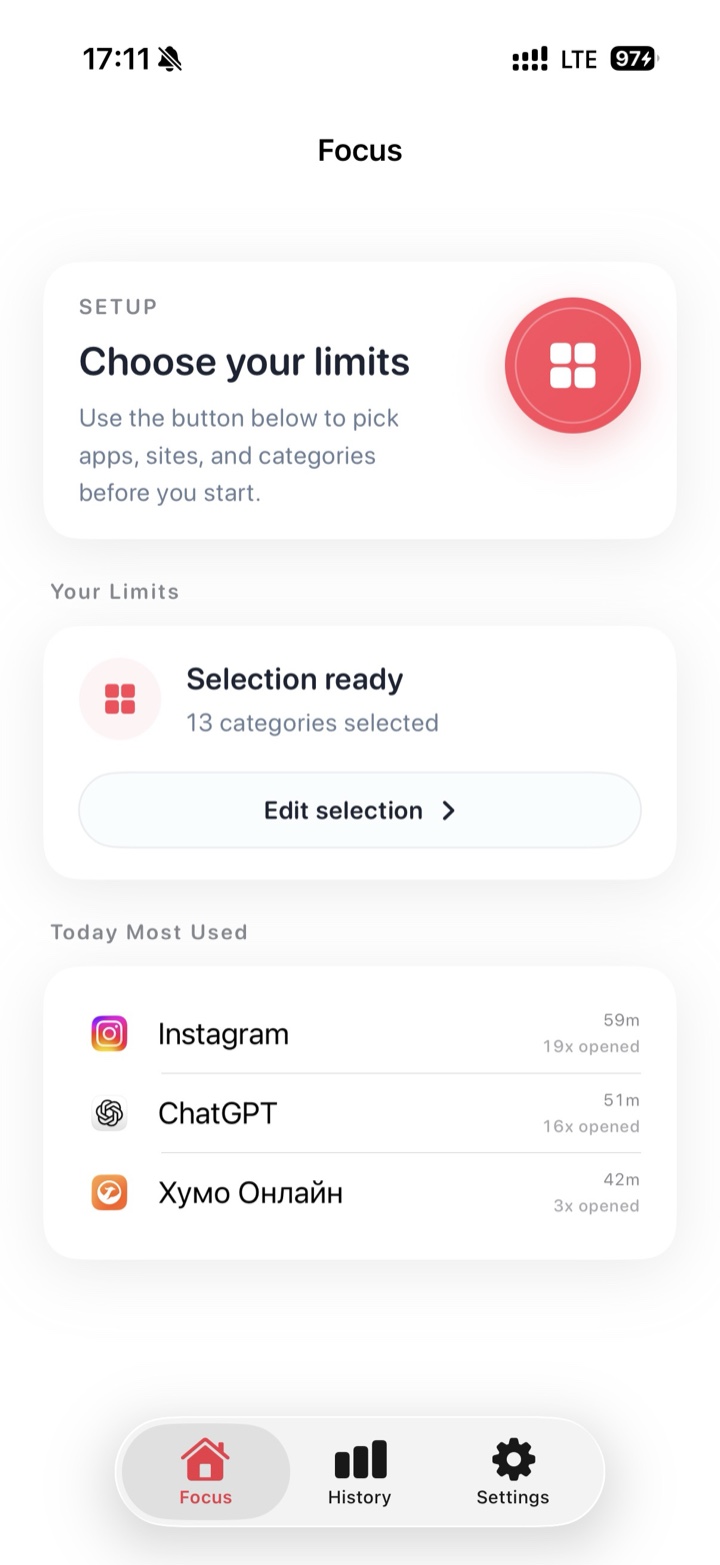
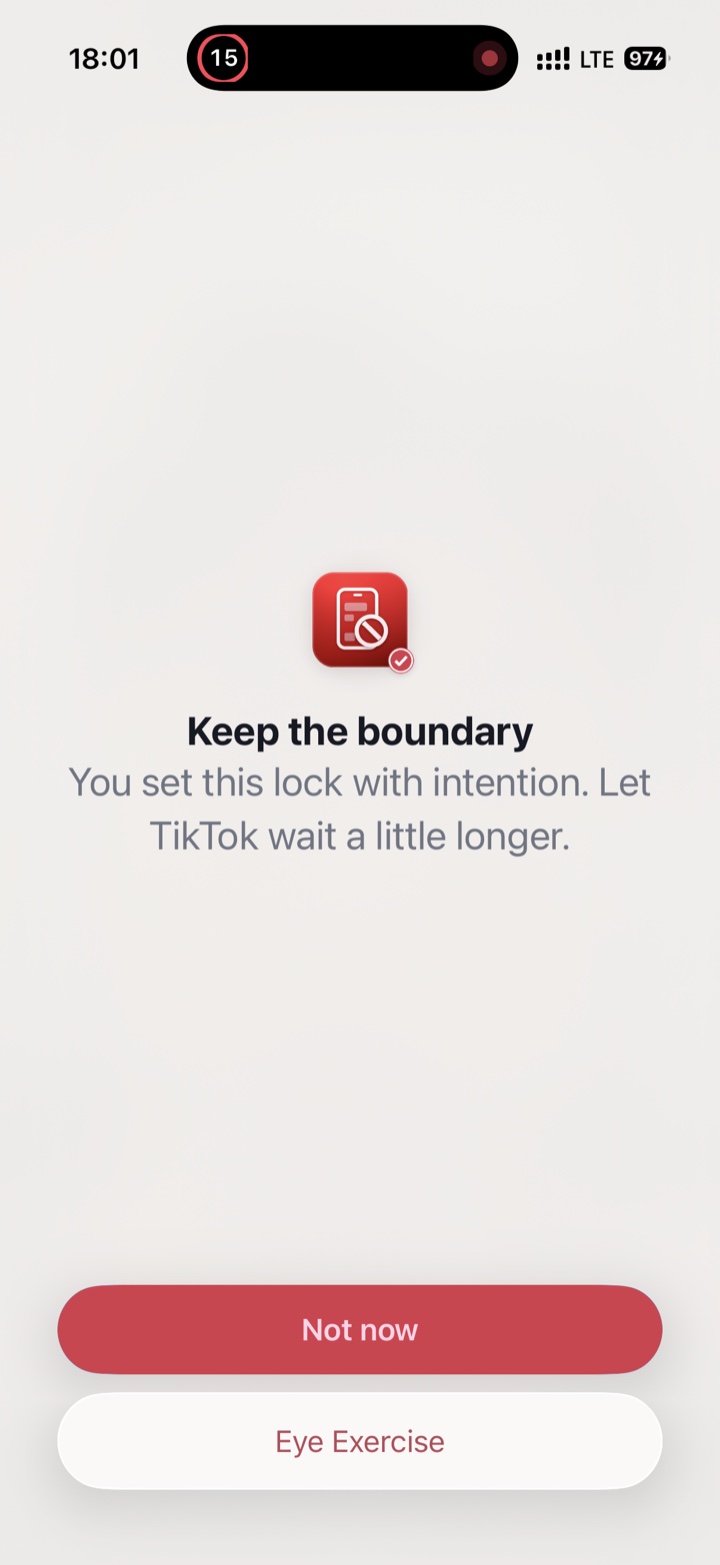
Everything you didn't pick keeps working, including Messages, WhatsApp, Maps, and your camera. If you open Instagram out of habit, Focus shows a pause screen instead of the feed. It uses Apple's Screen Time protections and doesn't need an account.
Tip: pair the block with Instagram's Quiet mode over the same hours. People who message you get an automatic reply, so you're not tempted to check in case someone needs you.
FAQ
Can I block Instagram but still get my DMs?
Not inside the app. Blocking Instagram blocks its messages too, because they live in the same app. If you need to stay reachable, move important conversations to Messages or WhatsApp before you start, or check your DMs at a set time on a computer.
Will people know I've blocked Instagram?
No. Blocking only affects your iPhone. Nothing is posted and your followers aren't told. The one thing others can see is Quiet mode, if you turn it on: it shows that you're in Quiet mode and auto-replies to messages.
What if I want a longer break, not just quieter evenings?
For a week or more away, you can offload the app or temporarily deactivate your account without losing anything. See how to take a break from Instagram or TikTok without deleting it.