YouTube is harder to block than most apps, because you probably don't want it gone entirely. There's the tutorial you need for work, the lecture for class, the recipe for tonight. It's the Shorts and the "up next" that take the evening.
So this guide covers two jobs: making YouTube less pull-y while you still use it, and blocking it outright for the hours you want back. You can do that with YouTube's own settings, Apple's Screen Time, or a timed block with an app like Focus. Whichever you choose, block youtube.com too, or Safari becomes the way around.
Your options at a glance
| Option | What it does | Where it breaks |
|---|---|---|
| Shorts feed limit | Removes the Shorts feed after a daily time, or right away | Adults can tap Ignore and get Shorts back for the day |
| Watch history off | Empties the home feed of recommendations | Search and subscriptions still work, so the rabbit hole is still one tap away |
| Screen Time App Limit | Locks YouTube after a daily budget | Only holds with a passcode and Block at End of Limit turned on |
| Blocking youtube.com | Stops YouTube in Safari and other browsers | Set up separately from the app |
| A timed block | Blocks the app and website until time is up | Needs a separate app |
Step 1: Make YouTube less sticky
If you still need YouTube some of the time, start here. These settings don't block anything, but they remove the parts designed to keep you watching.
Limit or hide Shorts. Tap your profile picture, then the gear icon for Settings → Time management, and turn on Shorts feed limit. Choose a daily time, or 0 minutes to hide the Shorts feed from the start. Shorts can still appear in your subscriptions and in search, but the endless swipe is gone.
Empty your home feed. When watch history is off and there's little history left, YouTube stops showing a feed of recommendations on the home screen and shows search instead. Open your YouTube history settings from the You tab, turn watch history off, and delete your past history. You'll still find anything you search for. You just stop being offered the next thing.
Turn on reminders. In YouTube's settings you can also set Remind me to take a break and Remind me when it's bedtime. They're polite nudges. Useful, but easy to wave away.
Step 2: Block the YouTube app with Screen Time
For the hours you want YouTube gone, Screen Time can lock it. The order matters.
- Set a Screen Time passcode. Go to Settings → Screen Time → Lock Screen Time Settings and choose a code you don't use to unlock your phone.
- Add a limit. Go to Settings → Screen Time → App Limits → Add Limit, open Entertainment, select YouTube, and tap Next. Set a time, as low as one minute.
- Make it hold. Open the limit and turn on Block at End of Limit. It only appears once a passcode exists.
YouTube time often happens at the same hours, typically in bed. Settings → Screen Time → Downtime blocks it on a schedule instead of a daily budget, and suits that pattern better.
To stop limits being quietly undone, see how to make Screen Time limits actually hold.
Step 3: Close the youtube.com loophole
Blocking the YouTube app leaves youtube.com wide open in Safari, with the full library and none of your limits.
- Share the app's limit. When choosing what an App Limit covers, scroll to Websites, tap Add Website, and enter
youtube.com. - Block it outright. Go to Settings → Screen Time → Content & Privacy Restrictions → Content Restrictions → Web Content, choose the middle option, and add
youtube.comunder Never Allow. This applies across every browser.
Two more gaps are specific to YouTube:
- YouTube Music is a separate app. It plays music videos, and blocking YouTube doesn't touch it. Add it to the same limit if music videos are part of the problem.
- Reinstalling resets the limit. Set Deleting Apps to Don't Allow under Settings → Screen Time → Content & Privacy Restrictions → iTunes & App Store Purchases.
Where the free options stop working
- YouTube's own limits end with a way out. The Shorts limit has an Ignore button, and the reminders can be dismissed.
- A daily budget doesn't know what you're watching. Twenty minutes on a tutorial uses the same allowance as twenty minutes of Shorts.
- You hold the passcode. When the video you "just need to finish" is playing at 1am, the person deciding whether to switch Screen Time off is the one who wants to keep watching.
Block YouTube with Focus
Focus is an iPhone app blocker for exactly the stretches you want YouTube gone, decided once at the start:
- Choose YouTube, and add youtube.com so Safari is covered. Add YouTube Music too if you need to.
- Set how long the block should last: a study session, a work afternoon, or the hour before bed.
- Start the block.
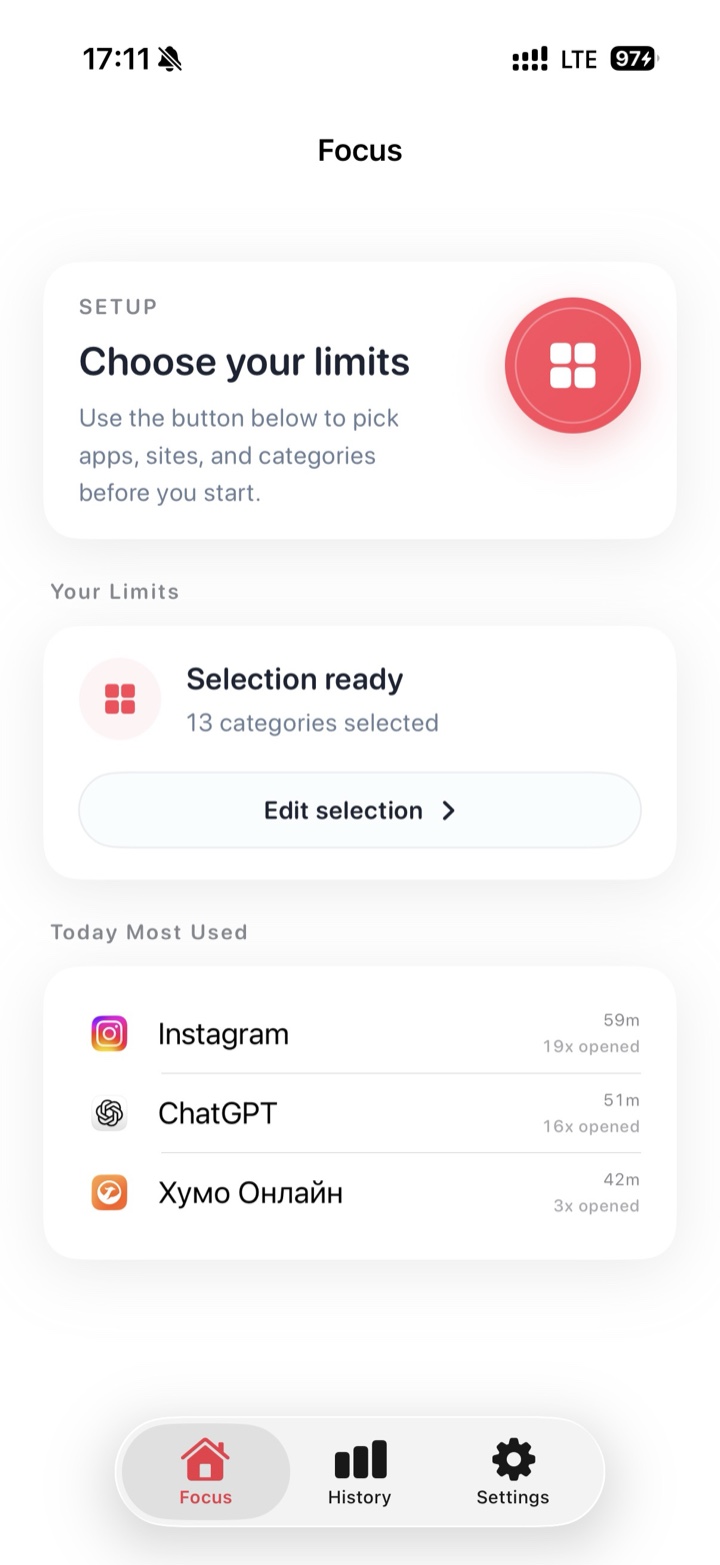
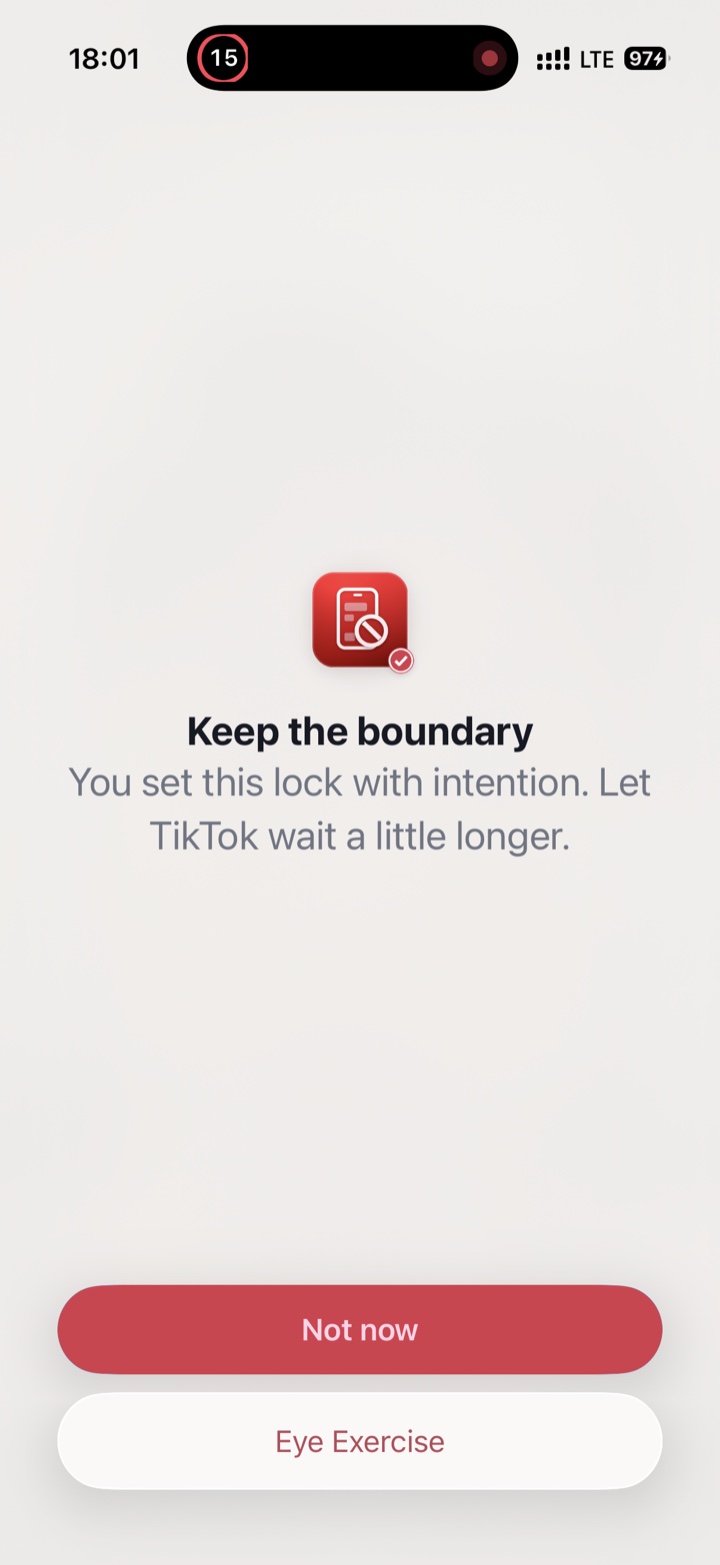
Everything you didn't pick keeps working. If you open YouTube out of habit, Focus shows a pause screen instead of the next video. It uses Apple's Screen Time protections and doesn't need an account.
Tip: the settings in Step 1 and a timed block work well together. Hide Shorts and the home feed for the times you use YouTube on purpose, and block it completely for the hours you don't.
FAQ
Can I block YouTube Shorts but keep regular YouTube?
Mostly. Set the Shorts feed limit to 0 minutes to remove the Shorts feed, and turn off watch history to empty the home feed. Shorts can still appear in search and from channels you subscribe to, and an adult account can tap Ignore to bring the feed back for the day. Blocking apps like Focus work on whole apps and websites, not on parts of YouTube.
Does blocking YouTube cancel YouTube Premium or remove my subscriptions?
No. Blocking only stops the app and website opening on your iPhone. Your account, subscriptions, playlists, and any Premium membership are untouched, and Premium keeps billing as normal.
Will blocking YouTube on my iPhone block it on my TV or computer?
Not by itself. Screen Time limits can carry across your Apple devices if you turn on Share Across Devices in Settings → Screen Time on each one. Other devices, like a smart TV or a Windows computer, need their own settings.