You open TikTok for one video. Forty minutes later you're still there, and you'd like your iPhone to stop letting that happen.
There are three ways to block TikTok on iPhone: TikTok's own screen time settings, Apple's Screen Time, or a timed block with an app like Focus. Whichever you pick, block tiktok.com as well. Otherwise the first blocked tap just becomes a trip to Safari.
Your options at a glance
| Option | What it does | Where it breaks |
|---|---|---|
| TikTok's daily screen time | Asks for a code once you hit a daily limit | You can enter the code and keep watching, so it's a pause, not a block |
| Screen Time App Limit | Locks TikTok after a daily budget | Only holds with a passcode and Block at End of Limit turned on |
| Downtime | Blocks TikTok during hours you choose | You can switch it off |
| Blocking tiktok.com | Stops TikTok in Safari and other browsers | Needs setting up separately from the app |
| A timed block | Blocks TikTok and its website until time is up | Needs a separate app |
Step 1: Use TikTok's own screen time tools
Open TikTok, go to your profile, tap the menu (☰), then Settings and privacy → Time and well-being → Screen time.
- Daily screen time: set a daily limit. When you reach it, TikTok asks you to enter a code before you can keep watching. For accounts aged 13 to 17, this is on by default at one hour.
- Screen time breaks: get a reminder to take a break after a stretch of uninterrupted scrolling. You choose how long.
- Sleep reminders: get a nudge when it's time to put the phone down at night.
These are worth turning on, mainly because they make the time visible. But they're built by the company that benefits from you staying, and each one ends with a way to keep going. Treat them as reminders, not a block.
Step 2: Block the TikTok app with Screen Time
Screen Time can actually lock TikTok, but only once one hidden setting is on.
- Set a Screen Time passcode. Go to Settings → Screen Time → Lock Screen Time Settings and choose a four-digit code that isn't your unlock code.
- Add a limit. Go to Settings → Screen Time → App Limits → Add Limit, open Social, select TikTok, and tap Next. Set the time. One minute is the shortest limit, and works as a near-total block.
- Make it hold. Open the limit you just made and turn on Block at End of Limit. This toggle only appears once a passcode is set, which is why so many people think Screen Time doesn't work.
If you lose time to TikTok at particular hours rather than all day, use Settings → Screen Time → Downtime instead and schedule those hours. During Downtime, only the apps you've allowed and phone calls are available.
For the full setup, including the settings that stop limits being bypassed, see how to make Screen Time limits actually hold.
Step 3: Close the tiktok.com loophole
Blocking the TikTok app does nothing about tiktok.com. Open it in Safari and you can keep scrolling videos, without any of the limits you just set on the app.
Close it in one of two ways:
- Add it to your App Limit. When choosing what the limit covers, scroll to Websites, tap Add Website, and enter
tiktok.com. The site then shares the app's limit. - Block it outright. Go to Settings → Screen Time → Content & Privacy Restrictions → Content Restrictions → Web Content, choose the middle option, and add
tiktok.comunder Never Allow. This applies in every browser, not just Safari.
One more gap: deleting TikTok and reinstalling it resets its App Limit. To shut that, go to Settings → Screen Time → Content & Privacy Restrictions → iTunes & App Store Purchases and set Deleting Apps to Don't Allow.
Where the free options stop working
- TikTok's own limit asks, it doesn't stop. Entering a code takes a few seconds, and habit is quicker than that.
- A daily budget runs out early. Thirty minutes of TikTok can be gone by lunch, leaving nothing in place for the evening you wanted to protect.
- You hold the passcode. Screen Time can be switched off by whoever knows the code, and at 11pm that's you.
Block TikTok with Focus
Focus is an iPhone app blocker that turns this into a decision you make once, in advance:
- Choose TikTok, and add tiktok.com so Safari is covered too.
- Set how long the block should last.
- Start the block.
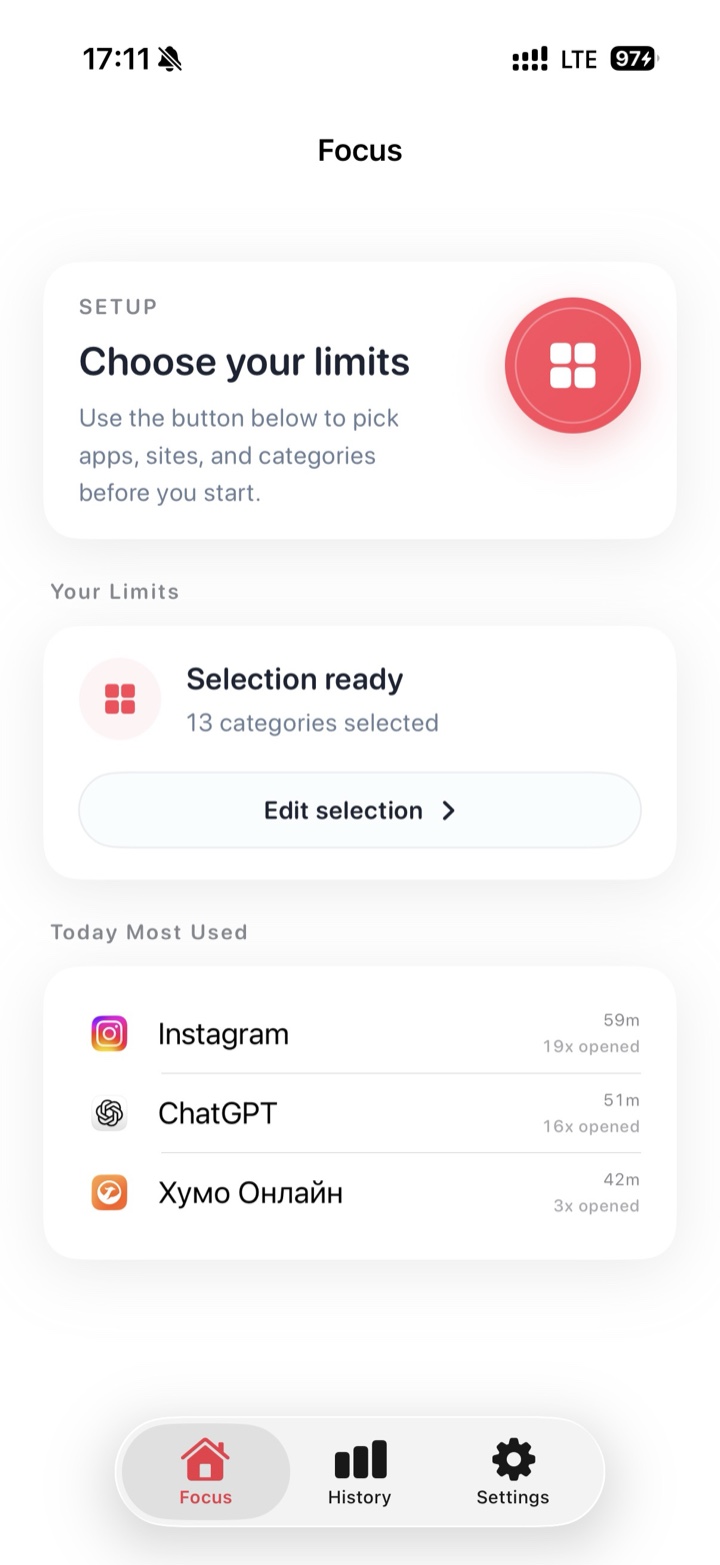
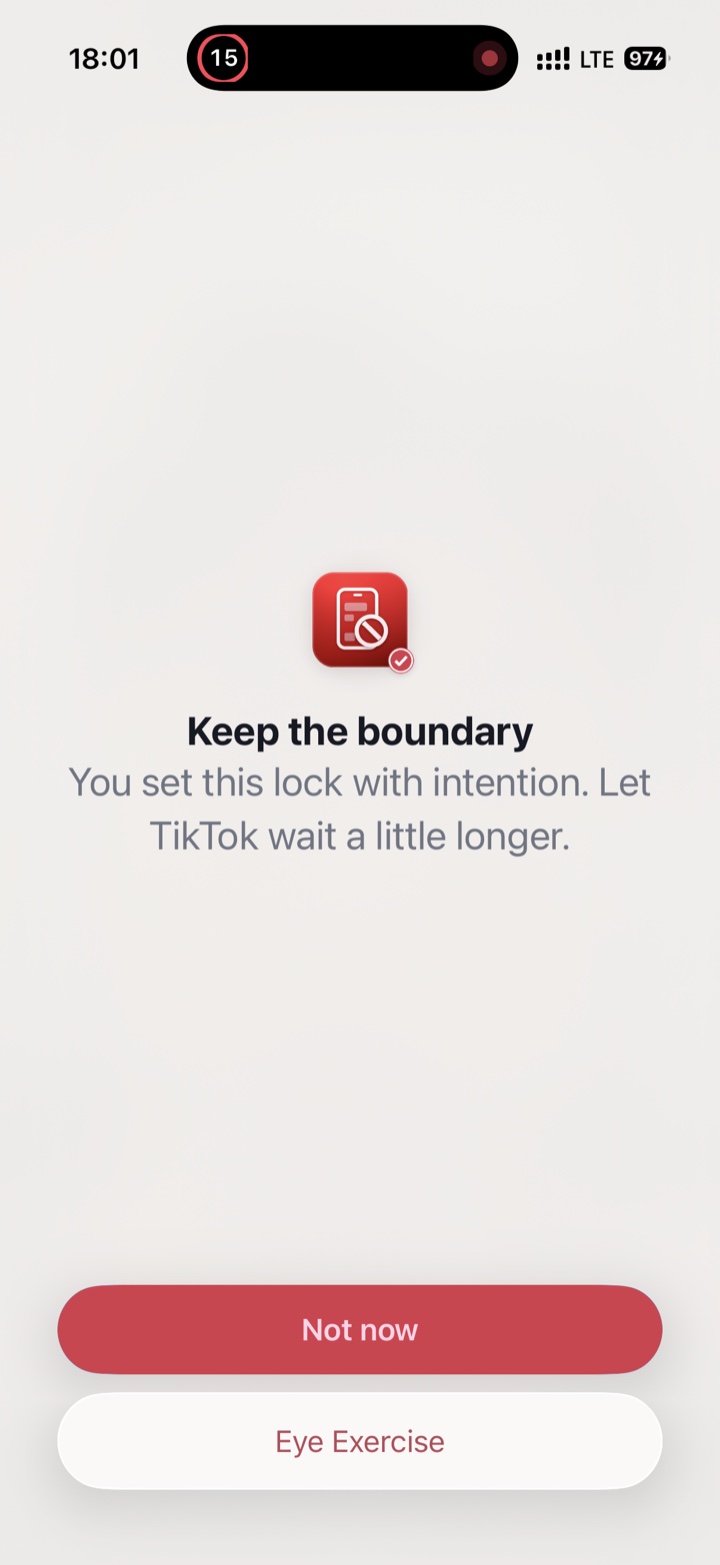
Everything you didn't pick keeps working, so Messages, Maps, and your camera are still there. If you open TikTok out of habit, Focus shows a pause screen instead of the feed. It uses Apple's Screen Time protections and doesn't need an account.
Tip: if what you really want is a few days or weeks away, not just quieter evenings, see how to take a break from Instagram or TikTok without deleting it.
FAQ
Does blocking TikTok delete my account or videos?
No. Blocking only stops the app and website from opening on your iPhone. Your account, videos, followers, and messages stay exactly as they are, and everything is there when the block ends.
Will blocking TikTok on my iPhone also block it on my iPad?
Screen Time limits can cover all your devices. Turn on Share Across Devices in Settings → Screen Time on each one, signed in with the same Apple Account. Limits you set on one device then apply on the others.
Can I block TikTok only at certain times?
Yes. Screen Time's Downtime blocks it on a repeating schedule, such as every evening after 9pm. For one-off stretches like a study session, a timed block in Focus covers TikTok and tiktok.com until the time is up.